Workflow Rules Module
The Workflow Rules module allows workspace administrators and owners to enforce structured task progression across Kanban board stages. Rules prevent premature completion and ensure quality standards are maintained.
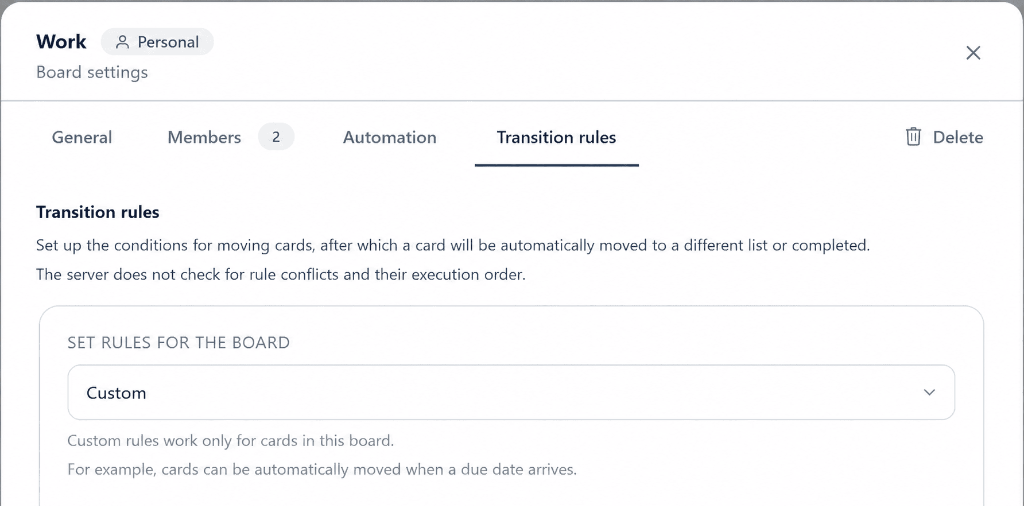
Important: Rules are validated both on the client and on the server (VDS Backend). Neither manual drags nor automated actions can bypass established workflow restrictions.
1. Available Transition Rules
Section titled “1. Available Transition Rules”For each Kanban board, you can enable any combination of the three rules:
| Rule | Trigger Condition | Description |
|---|---|---|
| Require a completed checklist | Moving to «Done» (DONE) | Blocks completion if any checklist items remain unchecked. |
| Require a reviewer | Moving to «Review» (REVIEW) | Blocks moving to review if no reviewer is assigned. |
| Require completion evidence | Moving to «Done» (DONE) | Requires a comment or an attachment before a card can be completed. |
2. Configuring Rules in Workspace
Section titled “2. Configuring Rules in Workspace”Workflow rules configuration is available in both web and mobile applications:
- Open Workspace Settings (gear icon next to workspace name).
- Switch to the «Workflow Rules» tab.
- Select the desired Kanban board from the dropdown.
- Toggle the switches for the rules you want to enforce. Changes save automatically.
3. Copying Rules to Multiple Boards
Section titled “3. Copying Rules to Multiple Boards”If your workspace has multiple boards (for different departments or projects), you can copy rules across them in one click:
- Configure rules on the current board.
- In the «Copy these rules to boards» section, select target boards using chips (or click «Select all boards»).
- Click «Apply to selected».
4. Task Watchers
Section titled “4. Task Watchers”
In addition to workflow enforcement, the platform includes a Watchers system:
- Bell Button: A discreet bell icon in the task card header and discussion thread.
- Notifications: Watchers receive instant alerts about status changes, assigned reviewers, comments, and submitted attachments.
- Watchers Sheet: Tap or long-press the bell to view the list of teammates monitoring the task.