Kanban Module
The Kanban module is a visual workflow management tool. Tasks are organized across columns supporting priorities, subtasks, assigned teammates, built-in stopwatch, and board archives. Each board is strictly bound to its workspace.
Tip: Quickly navigate to Kanban by selecting Kanban in the left ribbon or sidebar menu.
1. Default Columns
Section titled “1. Default Columns”
Every Kanban board comes with 4 standard columns representing task lifecycle stages:
- To Do — New and scheduled tasks ready to be picked up.
- In Progress — Work actively being worked on.
- In Review — Quality control, testing, or code review stage.
- Done — Successfully completed tasks.
Dragging and dropping cards between columns automatically updates task status. You can also reorder cards within a column.
2. Board Management
Section titled “2. Board Management”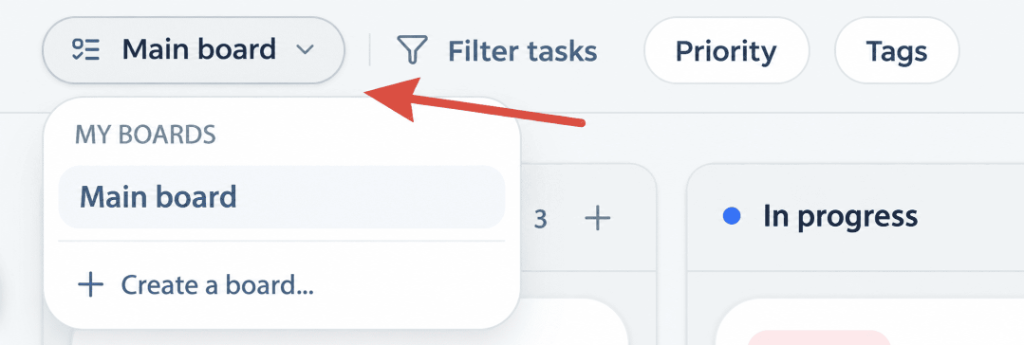
Within a single workspace, you can create unlimited boards (e.g., for different teams, releases, or personal goals):
- Open My Boards dropdown in the module header.
- Create Board: Enter a title for the new board (e.g., Releases, Marketing, Personal).
- Rename / Delete: Access management options in the dropdown context menu.
- Default Board: The primary board cannot be deleted (system protection).
Warning: Deleting a custom board deletes all cards located on it and requires explicit confirmation.
3. Creating Cards
Section titled “3. Creating Cards”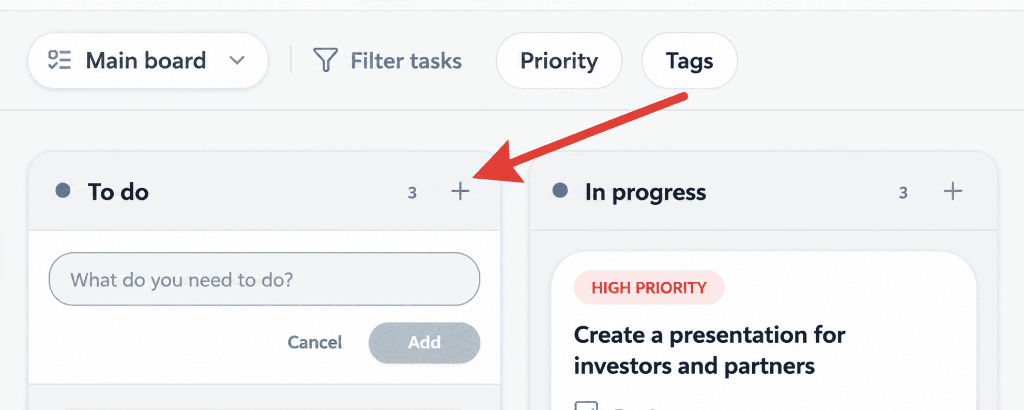
- Click
+in the header of the target column (e.g., To Do). - Enter the task title in the quick add field and press Add (or hit
Enter). - Click on the card to open full property editing.
You can also generate cards automatically using the AI Assistant.
4. Card Properties and Features
Section titled “4. Card Properties and Features”Opening a card gives full access to properties and controls:
| Card Property | Description |
|---|---|
| Title & Description | Instant title editing and expandable text description. |
| Column (Status) | Moving card across lifecycle stages (To Do, In Progress, In Review, Done). |
| Priority | Color-coded importance levels (Low, Medium, High, Urgent). |
| Schedule | Setting start date, start time, and exact due date. |
| Subtasks | Subtasks list with completion checkboxes, text editing, and deletion. |
| Time Tracking & Timer | Planned time budget, live stopwatch, and manual time logging. |
| Tags | Assigning color categories for rapid grouping. |
| Reminders | Configuring precise calendar and time notifications. |
| Attachments & Media | File uploads and built-in image gallery. |
| External Links | Attaching named web links to card. |
| Custom Fields | Adding custom key-value structured fields. |
| Comments | Discussion thread for team members. |
| Activity History | Audit log tracking all property modifications. |
5. Filtering and Search
Section titled “5. Filtering and Search”Focus search tools are available on the Kanban board toolbar:
- By Priority: Filter cards by importance level.
- By Tags: Search and filter tasks by specific tag badges.
- Full-Text Search: Filter cards by title keyword matching.
6. Board Archive
Section titled “6. Board Archive”To keep your active board clean, completed tasks can be archived:
- Send completed cards from the Done column to archive via cleanup button.
- The Board Archive modal lists all archived cards with timestamps.
- Any archived card can be restored back to board or deleted permanently.
- All archiving and restoration actions are recorded in activity log.
7. Time Tracking & Stopwatch
Section titled “7. Time Tracking & Stopwatch”- Open task card ➔ Time Tracking section.
- Stopwatch: Pressing “Start” launches live time tracking. Stopping accumulates time into actual spent total.
- Manual Entry: Manually input spent time with notes.
- Plan vs Actual: Visual comparison of planned budget vs actual spent time.
8. Teamwork and Permissions
Section titled “8. Teamwork and Permissions”- Assignee: Assignee avatar and name display on the card facade.
- Team Workload: Completed and active Kanban tasks update the member workload profile in Team.
- Access Rights: Member actions are restricted by workspace role (users with Guest role have view-only access).
9. Offline Mode & Synchronization
Section titled “9. Offline Mode & Synchronization”- All boards and cards are stored locally in the browser (IndexedDB) and remain instantly accessible offline.
- Local edits automatically sync to cloud server when connection restores.
- Workspace data isolation is enforced.
10. Differences from Tasks Module
Section titled “10. Differences from Tasks Module”| Criterion | Kanban Module | Tasks Module |
|---|---|---|
| Core Structure | Columns & position flow | Project lists & 5 view modes |
| Main Focus | Visual operational workflow | Schedule, Gantt, Eisenhower matrix, calendar |
| Work Completion | Board archiving | Trash & soft delete |
| View Modes | Horizontal board | List, table, Gantt, matrix, calendar |
Both modules complement each other: high-level project planning is best done in Tasks, while daily operational flow thrives on Kanban Boards.