Automations Module
The Automations module enables no-code rule creation based on the “When event occurs ➔ perform action” pattern. Automations free teams from repetitive manual operations, speed up task routing, and ensure process consistency.
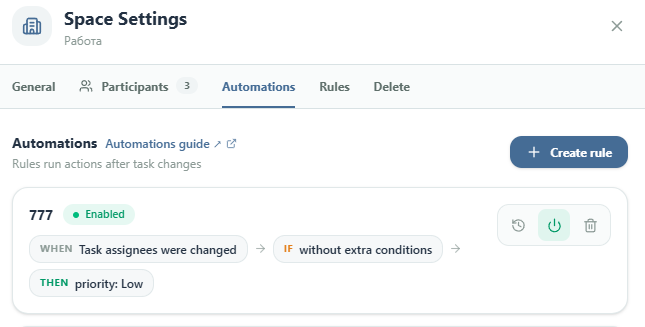
1. Rule Architecture
Section titled “1. Rule Architecture”Every automation rule consists of three key components:
- Trigger (When) — Event initiating rule execution:
- Task or card creation.
- Status or column change.
- Assignee or due date modification.
- Condition (If) — Filters defining matching tasks:
- Specific tags (e.g.
urgent,frontend,bug). - Specific list or Kanban board.
- Priority match.
- Specific tags (e.g.
- Action (Then) — Operation performed automatically:
- Assigning responsible member or reviewer.
- Setting or shifting due date.
- Moving card to another column or list.
- Adding tags or dispatching notifications.
2. Prebuilt Scenarios
Section titled “2. Prebuilt Scenarios”The rule creation wizard provides quick-start templates:
For Standard Tasks:
Section titled “For Standard Tasks:”- Assign on creation: Automatically routes incoming tasks to designated on-duty team members.
- Set due date after creation: Ensures no task is created without an assigned deadline.
- Route task by tag: Moves tasks to specific thematic lists based on tags.
- Complete on subtasks done: Automatically marks the parent task completed when all subtasks are finished.
For Kanban Boards:
Section titled “For Kanban Boards:”- Assign on card creation: Sets an owner for new tickets in the backlog column.
- Send to review: Automatically moves cards to «Review» upon completion and assigns a code reviewer.
- Route card by tag: Directs cards to appropriate boards and stages based on labels.
3. Creating and Managing Rules
Section titled “3. Creating and Managing Rules”- Navigate to Workspace Settings ➔ «Automations» tab.
- Click «Create rule».
- Select the entity type (Tasks or Kanban).
- Pick a prebuilt scenario or configure conditions and actions manually.
- Provide a descriptive title and save.
- Toggle rules on or off at any time using the status switch.