Team and Workspaces Module
The Team module manages joint project members and workspaces. It allows you to invite teammates, distribute roles and access permissions, view member profiles, and analyze employee workload.
Tip: Quickly navigate to Team by selecting Team in the left module ribbon. Workspace selector is available in the top app header.
1. Personal and Team Workspaces
Section titled “1. Personal and Team Workspaces”All work on the platform is isolated into workspaces:
| Workspace Type | Creation Method | Purpose |
|---|---|---|
| Personal | Automatically upon registration | Personal tasks, habits, finance, and private documents. |
| Team | Manual creation or via invite link | Collaborative projects, shared Kanban boards, role hierarchy, and team workload. |
Switching active workspace in the system header instantly updates the visible projects, tasks, Kanban boards, documents, and members.
2. Role Hierarchy and Access Rights
Section titled “2. Role Hierarchy and Access Rights”Each member in a workspace is assigned a role defining their permissions:
| Role | Permissions & Access |
|---|---|
| Owner | Full workspace control, member management, role configuration, and workspace deletion. |
| Admin | Inviting teammates, role management, policy configuration, and project management. |
| Member | Creating, completing, and editing tasks within granted permissions. |
| Guest | View-only access to tasks and projects (no card editing rights). |
3. Inviting New Members
Section titled “3. Inviting New Members”
- Open the Team module ➔ click the top
+ Invite Memberbutton (available to Owner and Admins). - In the Create Link form, enter the email address (
colleague@example.com). - Select member role from the dropdown (Member, Admin, or Guest).
- Click Create Link — the system generates a secure invite link like
https://app.planovik.pro/invite/... - Copy and send the link to your colleague. Upon sign in or registration via the link, the user joins your workspace.
4. Member Profile & Workload Cards
Section titled “4. Member Profile & Workload Cards”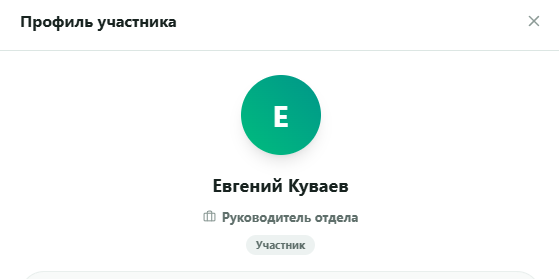
Clicking a member card in the team list opens the Member Profile drawer:
- Personal Details: Displays avatar, full name, and job title.
- Status & Role: Informational badge of active workspace role (Member, Admin, Owner, or Guest).
- Workload Counters:
- In Progress: Count of assigned active tasks from lists and Kanban boards.
- Completed: Total count of completed tasks.
- Access Management: Role modification options or remove member button.
Search colleagues in the list by name or email.
5. Task Edit Policies
Section titled “5. Task Edit Policies”Inside every task card, you can configure who has rights to make edits:
| Permission Level | Who Has Edit Rights |
|---|---|
| All Members | Any workspace member with Member, Admin, or Owner role. |
| Assignee & Admins | Assigned teammate, task creator, Admins, and Owner. |
| Admins Only | Admins and Owner only. |
Note: Users with the Guest role are restricted from editing tasks regardless of policy setting.
6. Communication & Mentions
Section titled “6. Communication & Mentions”In task discussion comments, use @ symbol to mention colleagues. Mentioned teammates receive immediate notifications for fast collaboration.
7. Local Storage and Security
Section titled “7. Local Storage and Security”- Team data caches locally (IndexedDB) for instant loading.
- Invite links contain secure tokens — do not publish them publicly. Links can be revoked and re-issued if needed.
- Transferring ownership or deleting a workspace are sensitive actions requiring explicit confirmation.