Backups and Cloud Drives Module
The Backups module ensures the protection of all your data in Planovik AI. The system saves complete snapshots of your profile: lists, tasks, subtasks, Kanban history, habits, financial transactions, categories, budgets, templates, workflow rules, and automation scripts.
Where to find: Click your profile in the top-right corner of the header → select “Settings” → “Backups” tab.
1. Local Backups (.json)
Section titled “1. Local Backups (.json)”Local backups run entirely in the browser and do not require linking cloud accounts:
- Export to File: Click “Download backup” to export a complete JSON snapshot to your local device.
- Restore from File: Click “Restore from file” and select a previously exported
.jsonfile. - Cross-Platform: Backups created in the mobile app or web version are fully interchangeable.
2. Connecting Personal Cloud Drives
Section titled “2. Connecting Personal Cloud Drives”Connect your personal cloud storage accounts to store backups in your private cloud space:
2.1. Yandex Disk
Section titled “2.1. Yandex Disk”- Direct secure connection using a dedicated Yandex App Password.
- Stored credentials are encrypted with AES-256-GCM.
- Backups are stored in a dedicated
PlanovikBackupsfolder on your Yandex Disk.
2.2. Google Drive
Section titled “2.2. Google Drive”- One-click authorization via official Google OAuth.
- Planovik AI only requests access to files it creates (
drive.file), without accessing other personal drive files.
3. Automated Scheduled Backups
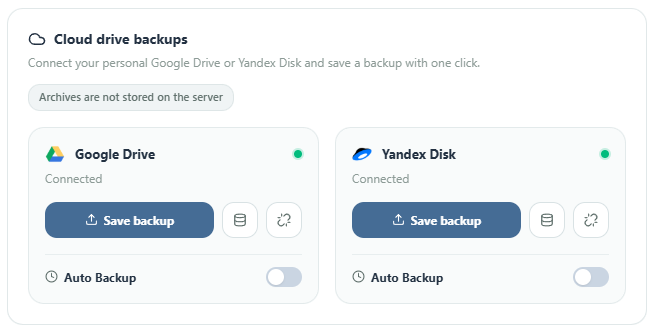
Section titled “3. Automated Scheduled Backups”Once Yandex Disk or Google Drive is connected, toggle the “Automatic backup” switch:
Available Intervals:
Section titled “Available Intervals:”- 1 day (every 24 hours) — Available free for all users (including the Base plan).
- 3 days, 7 days, 14 days, 30 days — Standard intervals.
- 12 hours, 6 hours, 2 hours, 1 hour — High-frequency intervals for active workloads on Start, Pro, and Team plans.
Manual Trigger
Section titled “Manual Trigger”Click the “Save backup copy” button anytime to generate an immediate fresh backup.
4. Retention and Storage Safety
Section titled “4. Retention and Storage Safety”- Storage Retention Limit: To prevent filling up your drive, the system stores up to 50 recent backups. When the 51st backup is created, the oldest copy is safely purged.
- Token Encryption: All access tokens and passwords are fully encrypted on the server.
- Integrity Checksums (SHA-256): Each backup file includes a digital hash to ensure data consistency during transfer.
5. Restoring from Cloud Storage
Section titled “5. Restoring from Cloud Storage”- In the connected drive card, click the snapshot history icon (database icon).
- Choose a restore point from the list by timestamp and size.
- Click “Restore” and confirm. All lists, tasks, habits, and financial entries will be restored instantly.